
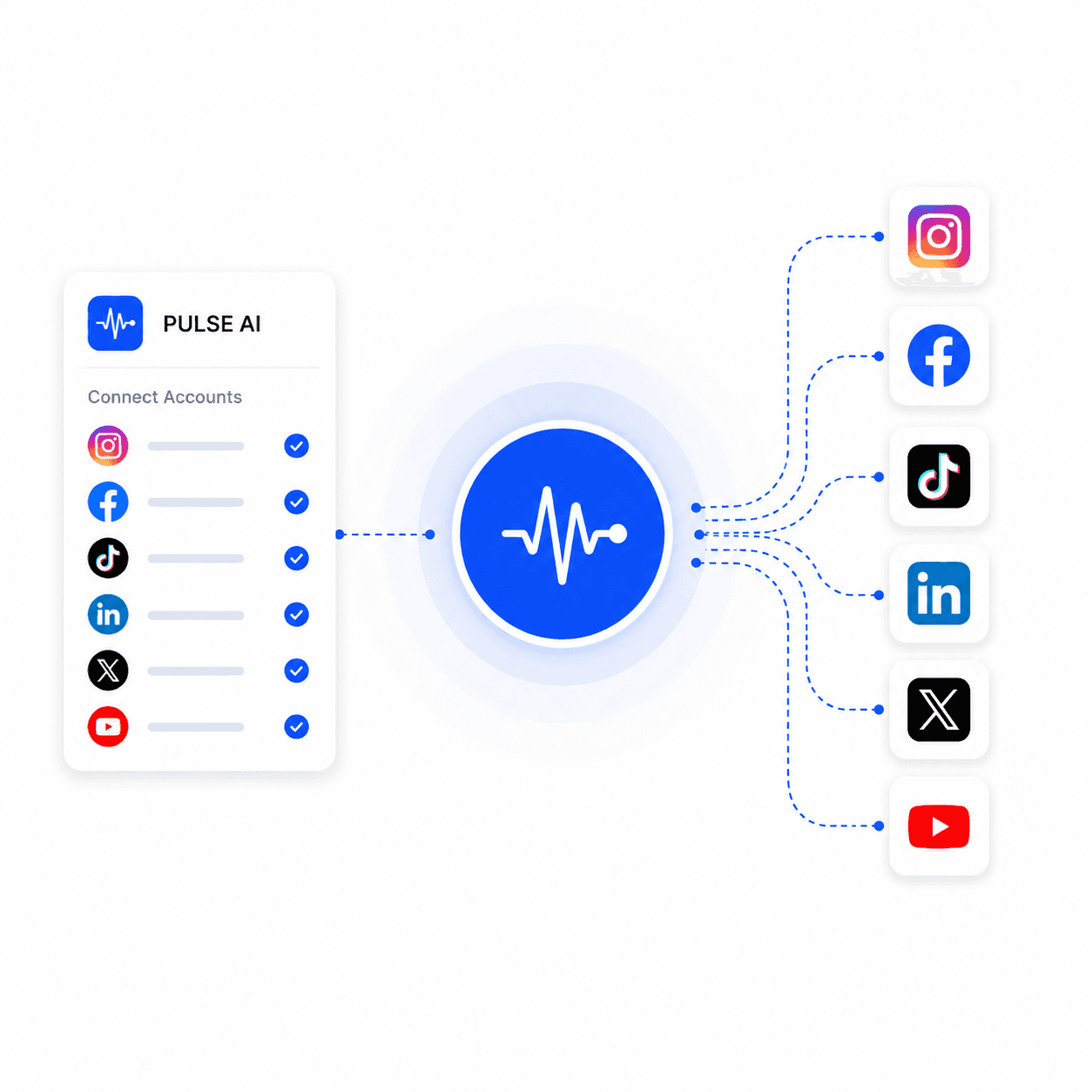

Pulse AI works best when it’s connected directly to your social media accounts. Once linked, you can create, manage, and optimize content in one place without switching between platforms.
This guide shows you how to connect your accounts in a few simple steps.
Why You Should Connect Your Accounts
Linking your social accounts unlocks the full power of Pulse AI:
- Schedule and publish posts automatically
- Manage multiple platforms from one dashboard
- Maintain consistent brand messaging
- Track performance in real time
- Reduce manual posting across apps
Instead of juggling tools, everything becomes centralized.
Step 1: Go to the Integrations Section
After logging into Pulse AI, navigate to:
- Dashboard → Settings → Integrations
This is where all supported social platforms are listed.
You will typically see options like:
- X (Twitter)
- TikTok (where supported)
Step 2: Choose a Platform to Connect
Click on the platform you want to link.
Pulse AI will prompt you to:
- Log in to your social account
- Grant necessary permissions
- Confirm access for posting and analytics
These permissions allow Pulse AI to publish and manage content on your behalf.
Step 3: Authorize Pulse AI
Once redirected to the platform (e.g. Twitter or Meta login page):
- Review the permissions carefully
- Click Authorize / Allow
- Confirm your account connection
This securely links your account to Pulse AI without sharing your password.
Step 4: Verify Connection
After authorization, you’ll be redirected back to Pulse AI.
You should see:
- A “Connected” status next to your account
- Your profile name or handle displayed
- Option to disconnect or manage settings
If the status is active, your account is successfully linked.
Step 5: Connect Multiple Accounts (Optional)
You are not limited to one platform.
You can connect:
- Multiple brand accounts
- Client accounts (for agencies)
- Different platforms at the same time
This is especially useful for social media managers and agencies handling multiple clients.
Step 6: Start Creating and Publishing Content
Once connected, you can:
- Generate posts with Pulse AI
- Schedule content in advance
- Auto-publish to selected platforms
- Reuse content across multiple accounts
Everything happens from a single dashboard.
Troubleshooting Common Issues
If you encounter problems:
Account not connecting
- Refresh and try again
- Ensure you're logged into the correct social account
Permission error
- Reauthorize Pulse AI from the platform settings
Missing account in dashboard
- Disconnect and reconnect the integration
Final Thoughts
Connecting your social accounts to Pulse AI transforms it from a content tool into a full social media automation system.
Once linked, you can focus on creating ideas while Pulse AI handles distribution.
More content. Less manual work. Faster growth.